Why is my PDF printing too small or getting cut off?
Updated 14 November 2026
Quick answer: Check three separate settings: the PDF page size, the paper selected for printing and the scaling setting. Fit may shrink a page to the printable area; 100% preserves the intended scale but can clip content outside that area. Check the preview and one sample before printing a batch.
A page can look correct on screen and still print smaller than expected. The screen preview may show the entire PDF, while the printer works with a particular sheet, orientation and printable area. Start with those choices before changing the document or ordering another batch.
This is an illustrated troubleshooting workflow, not a physical printer test. Settings and labels vary between PDF viewers and printer drivers. For dimension-sensitive work, confirm the requirements with the recipient or print provider.
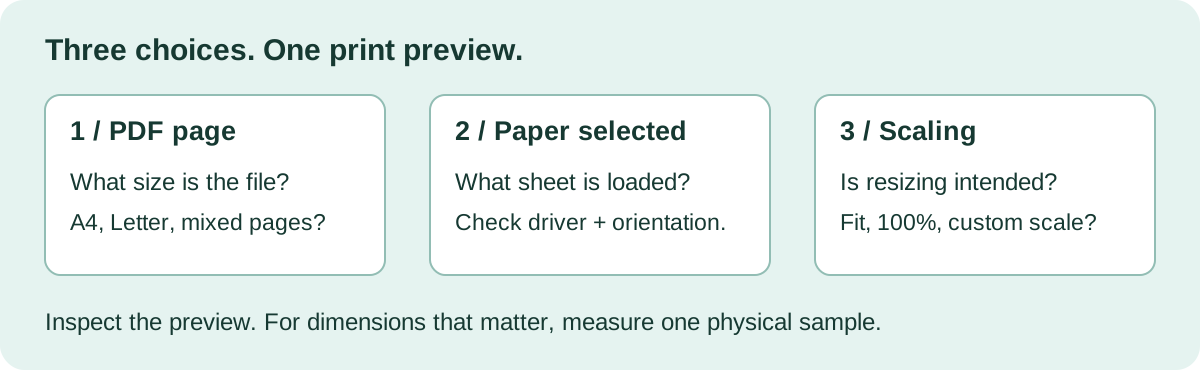
Find the symptom first
| What you see | Check first | What to try |
|---|---|---|
| Everything is smaller, with wider margins | Scaling and pages per sheet | Check whether Fit, a custom percentage or a multiple-pages setting is active. |
| The bottom or one side is missing | PDF size, selected paper and orientation | Compare the dimensions. Then inspect the printable area and preview. |
| A form or template has the wrong dimensions | Scale in the viewer and driver | Use the specified scale, inspect any driver resizing and measure a sample. |
| Only one page prints differently | That page's actual dimensions | Check for mixed page sizes or orientation within the same PDF. |
| Text fits, but pictures look soft | The source image or scan | Inspect the original file. Changing paper size does not restore missing image detail. |
1. Confirm the PDF page size
Look for page dimensions in the PDF viewer's document properties or print preview. A4 is 210 × 297 mm; US Letter is 215.9 × 279.4 mm. Letter is wider and shorter. Selecting A4 paper does not reflow a Letter document into a new layout.
If you still have the original Word, slide or design file, check its page setup too. When you change that layout, export a fresh PDF and inspect the exported file. Renaming an old PDF does not change its dimensions. See the A4 unit and pixel reference and the PDF export guide.
2. Match the sheet and orientation
Check the paper selected in the print dialog, the paper configured in the printer driver and the sheet actually loaded. A PDF viewer and driver may show separate controls. If one says A4 and the other says Letter, resolve that mismatch before changing font sizes.
Check portrait or landscape orientation, and confirm that the preview shows the whole page in the expected direction. If a file contains mixed-size pages, inspect the unusual page separately. Do not assume the first page represents the entire document.
3. Choose scaling for the job
In Adobe Acrobat, the Size controls include options to fit a page to the selected paper, shrink oversized pages or use a custom percentage. Other viewers use different labels. These choices solve different problems; none is the right setting for every job.
- Ordinary notes or reading copies: fitting the content can help keep it inside the printable area. Check that the resulting text is still comfortable to read.
- Forms, scale drawings or templates: follow the supplied scale instructions. If they require 100%, a fit setting may change the physical dimensions.
- Content too close to an edge: preserving scale does not make that edge printable. A different layout, sheet or printing process may be needed.
For example, a hypothetical 100 mm reference line printed at 95% would be 95 mm long. That is a calculation, not a measurement from a printer test. It explains why a small scaling change matters more for a template than for a reading copy.
4. Separate margins, clipping and bleed
The document's margins are part of its layout. A printer's printable area is a property of the selected hardware and settings. A page with text right against the PDF edge can therefore lose content even when the PDF and sheet dimensions match.
Bleed serves a different purpose: artwork extends beyond a final trim edge for a job that will be cut. Do not add a universal bleed or binding-margin number to every document. Ask the provider for the specification for that paper, finishing and binding process. The same caution applies to borderless settings: use them only when the printer, paper and job support them.
5. Check one sample, then the batch
- Open the final exported PDF, not an earlier editor version.
- Confirm page size, selected paper, orientation, scaling and pages per sheet.
- Inspect the preview for missing edges, unexpected blank space and unreadably small text.
- Print one representative page. For dimension-sensitive work, measure a known reference on that sample.
- If the job is double-sided, check the reverse side and page-turn direction too. Use the double-sided printing guide for the separate duplex choices.
- Keep the exact approved PDF and record the settings before producing the remaining copies.
If the preview is correct but the physical sample is not, record the viewer, driver, selected settings and the actual result. That gives a print provider or device-support team a concrete problem to investigate. Avoid changing several settings at once, because it becomes harder to tell which change affected the output.
Download a printable scale-check reference
Download the free A4 print-scale check PDF. It contains a 100 mm reference line, a 50 × 50 mm square and space to record the settings and measured sample. Print it at the required scale and measure between the centres of the reference strokes.
The vector dimensions have been checked in the PDF file. That does not establish the dimensions produced by your printer. This is a troubleshooting reference, not a printer calibration or accuracy certificate. It is separate from the illustrative diagram above, which is not an actual-size template.
A short visual walkthrough
Watch our original 60-second print-settings lesson. It illustrates the three-setting check without claiming a physical test or requiring a purchase.
Sources and scope
- Microsoft Learn: paper sizes, for the A4 and Letter distinction.
- Adobe Acrobat: adjust page size for printing, for print-scaling choices.
- Adobe Acrobat: print PDFs with mixed page sizes, for documents containing different page dimensions.
Prepared by PrintPDFOnline with AI assistance and checked against the cited documentation. No device-specific test, universal margin specification or guaranteed printing result is implied.